MKZQ-28 New controller
Parz industry & trading Co., Ltd.|warning lightbar Multi function controller| Touch Screen controller



Etiam efficitur, metus in cursus imperdiet, neque nisl porta erat, nec volutpat felis lacus a tellus. Nunc tristique nulla nisi.
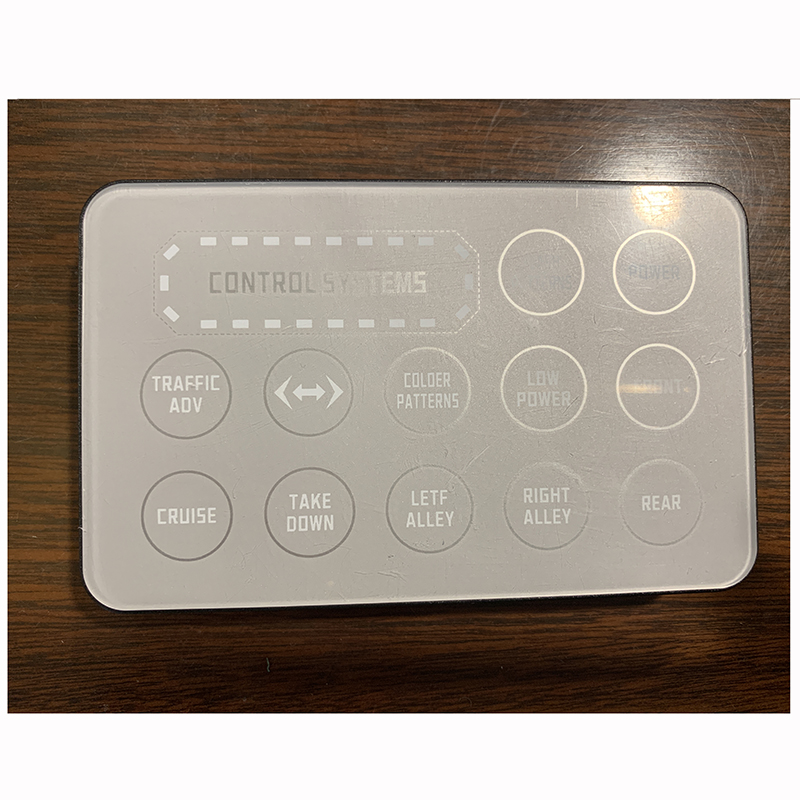
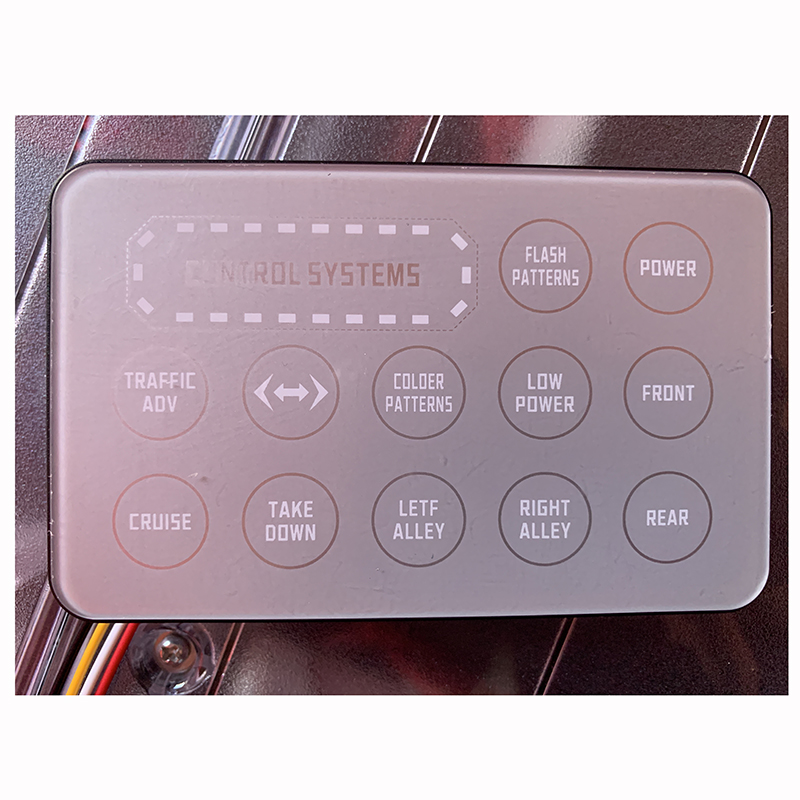
Parz industry & trading Co., Ltd.|warning lightbar Multi function controller| Touch Screen controller
https://youtu.be/ArFYc8TderI
Feature:
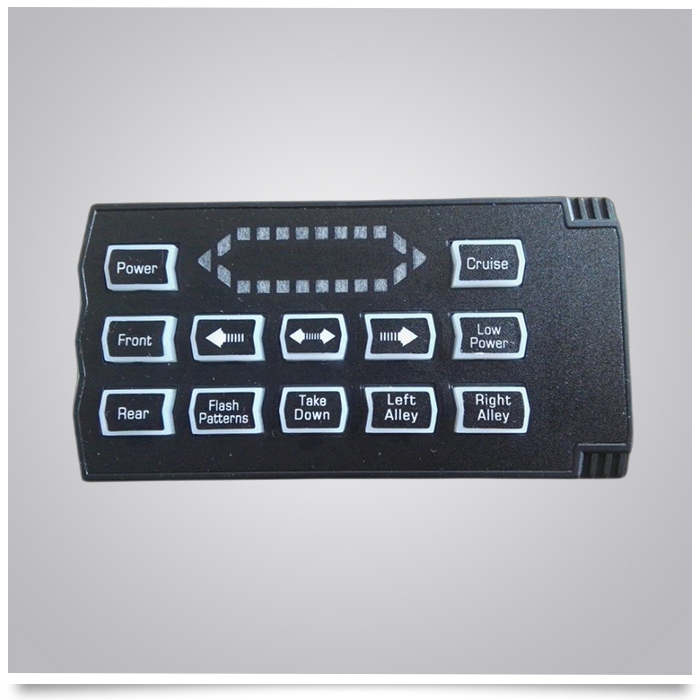
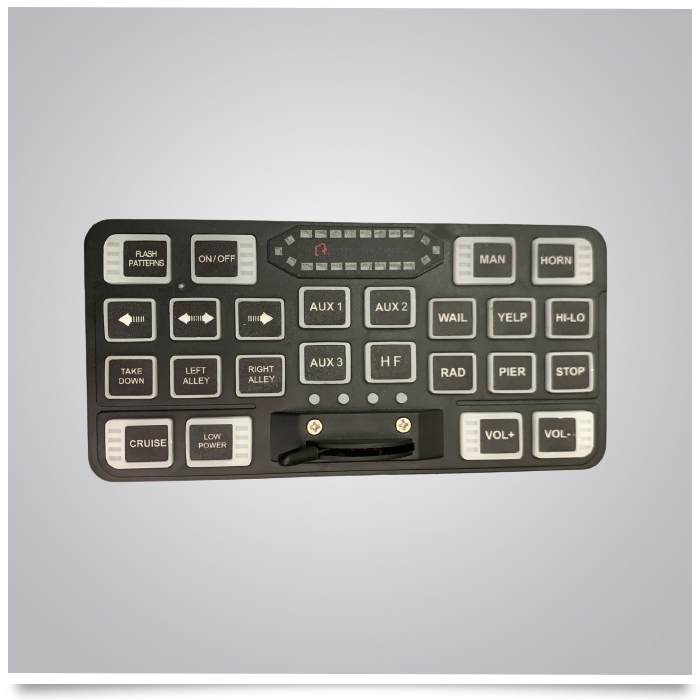
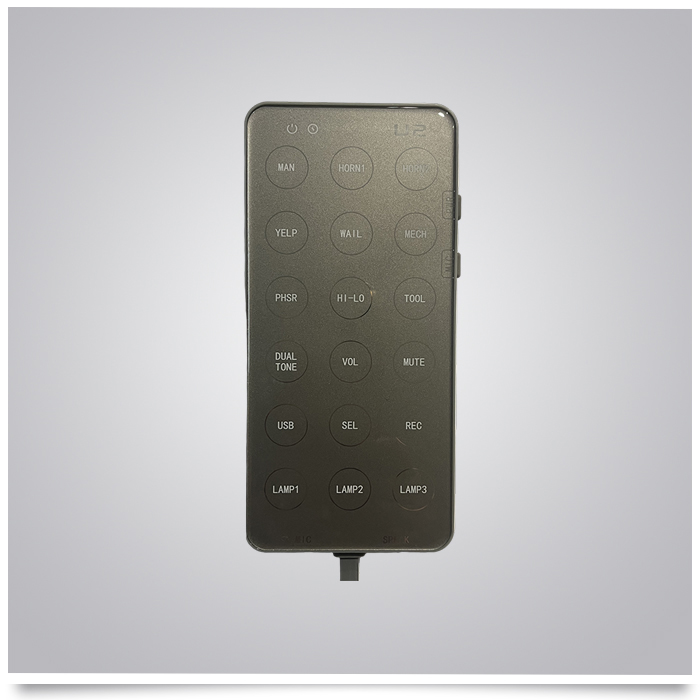
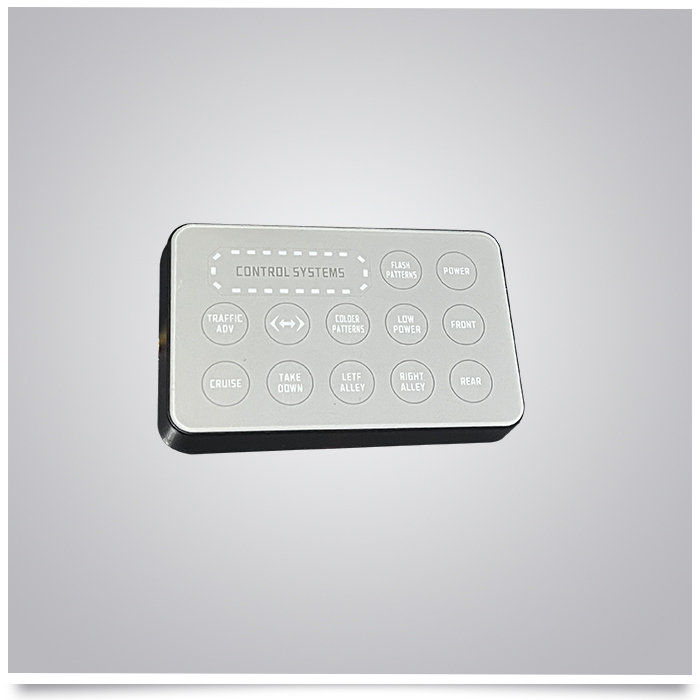
This product is a warning lightbar control panel, suitable for controlling warning lightbar systems on police, fire, engineering, rescue and other vehicles. The panel adopts PC membrane switch surface sticker, silk-screen acrylic control panel, and membrane touch button panel. It features wear resistance, water resistance, dust resistance and sensitive touch response.
Surface Material & Structure
Surface material: PC membrane switch surface sticker
Control panel: Silk-screen acrylic control panel
Button type: Membrane touch button panel
Features: Thin and light, wear-resistant, waterproof and dustproof, long service life, sensitive operation
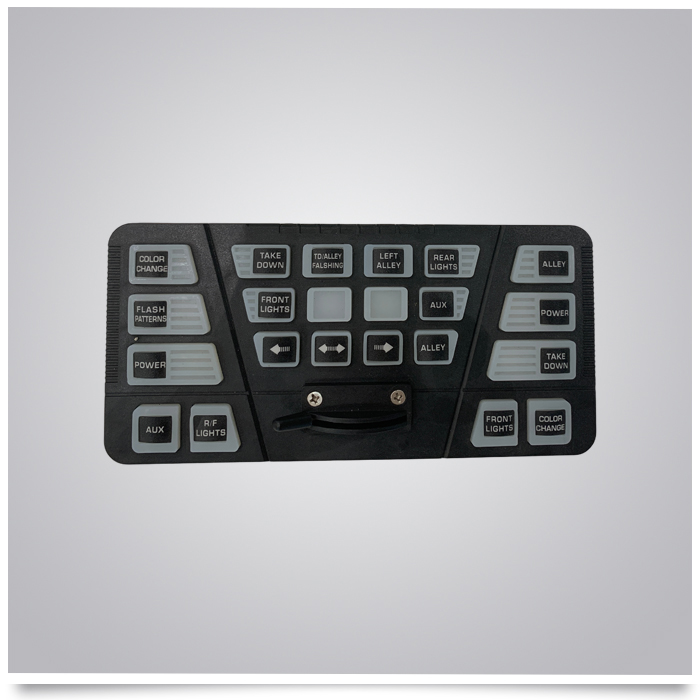
| Button | Function Description |
|---|---|
| COLOR CHANGE | Switches the light color (e.g., from red to blue or amber). |
| FLASH PATTERNS | Cycles through different flashing patterns (e.g., strobe, pulse, alternating). |
| POWER | Main power switch for the entire control system. |
| AUX | Auxiliary switch for additional connected devices. |
| R/F LIGHTS | Toggles the Right/Front lights (or Rear/Front lights, depending on vehicle wiring). |
| Button | Function Description |
|---|---|
| TAKE DOWN | Activates the "Take Down" mode (front-facing high-intensity white lights). |
| TD/ALLEY FALSHING | Toggles the flashing mode for Take Down and Alley lights simultaneously. |
| LEFT ALLEY | Turns on the left-side alley light for side illumination. |
| REAR LIGHTS | Turns on the rear warning lights. |
| FRONT LIGHTS | Turns on the front warning lights. |
| AUX | Auxiliary switch for additional connected devices. |
| ALLEY | General toggle for alley lights (may activate both sides or a specific mode). |
| Arrow Buttons (Left/Right) | Adjust settings (e.g., brightness, speed) or navigate through menu options. |
| Blank Buttons | Reserved / customized function |
| Button | Function Description |
|---|---|
| ALLEY | Turns on the alley lights (side-facing). |
| POWER | Secondary power switch (often for a specific zone or backup). |
| TAKE DOWN | Activates the Take Down mode for front-facing white lights. |
| FRONT LIGHTS | Turns on the front warning lights. |
| COLOR CHANGE | Switches the light color. |
Power On: Press the POWER button on the left or right panel to turn on the system.
Select Mode: Press FLASH PATTERNS to cycle through available flashing modes.
Activate Lights:
Press FRONT LIGHTS or REAR LIGHTS to activate specific warning lights.
Press LEFT ALLEY or ALLEY to activate side illumination.
Press TAKE DOWN for high-intensity white lights.
Adjust Color: Press COLOR CHANGE to switch the light color (if supported by the light bar).
Adjust Settings: Use the Arrow Buttons to adjust brightness or speed.
Auxiliary Devices: Press AUX to control additional equipment.
Power Off: Press POWER again to turn off the system.
Do not use sharp objects to press the membrane buttons to avoid scratching the panel.
Clean with a soft, damp cloth. Do not use corrosive cleaners.
Do not disassemble or modify the control panel while powered on.
If buttons fail or lights behave abnormally, contact professional maintenance personnel immediately.
Ensure the power supply voltage matches the rated voltage of the control panel during installation.
MKZQ-28 New controller Recommend products
In addition toMKZQ-28 New controller Customers Also Bought